Hey everyone, I’m [your company name here], and let’s cut to the chase—when it comes to your desktop, the power cable you grab off the shelf isn’t just a wire. It’s the unsung hero keeping your rig running smooth, whether you’re grinding through work deadlines, gaming for hours, or editing videos that take forever to export. Last week, I got a panic email from a regular customer who said his new 4090 was crashing mid-battle, and turns out he used a cheap random cable he found in a drawer—yikes. That’s exactly why I wanted to break down how to pick the right power cable for your desktop, no confusing jargon, just real stuff I deal with every day as a power cable supplier. Power Cable
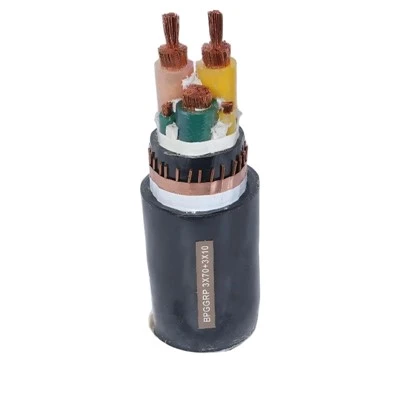
First off, let’s talk about the basics that don’t get enough love: the type of connector. Desktops have two main power cable setups these days—ATX and the modular ones, right? Wait, no, more like the main 24-pin motherboard cable and the PCIe (or sometimes called GPU power) cables. A lot of people mix these up because they look similar, but they’re not interchangeable. The 24-pin is the big, flat one that plugs straight into your motherboard—don’t force a PCIe cable there, trust me, I’ve seen way too many customers mess that up and fry a port. For GPUs, if you’ve got a high-end card (like 30-series, 40-series, or even new AMD ones), you might need 8-pin or 16-pin PCIe cables. Oh, and modular power supplies (PSUs) are super common now—those are the ones where you can swap out cables instead of using a fixed bundle. If you’ve got a modular PSU, double-check that the cable you’re buying is specifically made for your PSU model. Not all 24-pin cables work with all PSUs, even if they look the same—different pin layouts for some brands, that’s a thing. I can’t tell you how many times I’ve had to send a replacement because someone grabbed a generic cable that didn’t click right with their Corsair or Seasonic PSU.
Next, gauge and length—this is where people cut corners (pun very much intended) and regret it. Gauge, or AWG (American Wire Gauge), is the thickness of the wire. Lower AWG number means thicker wire, which can handle more power without overheating. For desktop power cables, the sweet spot is usually 16 AWG for PCIe and 18 AWG for 24-pin. Wait, why? Because a GPU pulling 300+ watts needs a thicker wire to carry that juice without losing power or getting too hot. I once had a customer run a 20 AWG cable for his RTX 3080, and after a few months, the wires inside the insulation started frayed from overheating—thankfully he caught it before anything burned. Length matters too, don’t just grab the longest one or shortest one. If your case has a mid-tower, 24-inch cables are usually enough for the motherboard, but full-tower cases might need 30-inch or even 36-inch PCIe cables. Too short and you’ll be yanking on your PSU port trying to plug it in, too long and you’ll have a messy rat’s nest inside your case, which can block airflow and make your whole rig run hotter. I always tell customers to measure the distance from their PSU port to the component (motherboard/GPU) before ordering—takes two seconds and saves so much hassle.
Then there’s the big one: quality and safety. I know, I know, cheap cables on Amazon for $5 look like a steal, but here’s the thing—those often use flimsy insulation that can melt, or wires with less copper than they claim (they mix in aluminum to cut costs). As someone who works with power cables every single day, I swear by copper conductors. Pure copper is way better at conducting electricity than aluminum or copper-clad aluminum (CCA). CCA cables get hot faster, cause voltage drops, and are just not worth the risk. Also, look for certifications—UL, CE, RoHS, those are non-negotiable. UL is Underwriters Laboratories, they test cables for safety to make sure they won’t start a fire. I’ve had a few customers bring in cheap uncertified cables they got from a random eBay seller, and the insulation was so thin you could see the wire through it when you bent it—terrible. Another thing: if you’re into custom builds (RGB, sleeved cables, etc.), make sure the sleeving is heat-resistant. Nylon is common, but avoid cheap plastic that can warp when near your GPU’s VRM or the PSU fan.
Wait, let’s talk about specific use cases because that changes everything. Are you a casual user? Someone who just surfs the web, streams Netflix, and uses Word? Then any decent 18 AWG 24-pin and 16 AWG PCIe cable certified by UL will work, no need to overcomplicate. But if you’re a PC builder, or you run a high-end gaming setup, stream 4K, or do 3D rendering, you need to step it up. For GPUs over 450 watts (like 4090 Ti, RTX A6000), you should get 12-awg or 10-awg PCIe cables—wait, no, double-check, some high-power ones use 8-pin with 14 AWG now, but always match the PSU’s recommendation. Also, if you’re modding your build (like color-coded cables for RGB themes), make sure the custom sleeved cables still have the same gauge and certifications. I worked with a guy who spent $200 on custom sleeved cables that looked amazing, but they used 20 AWG and he had to replace them in a week because his GPU kept throttling. Don’t let looks trick you—function first, always.
Another common mistake: assuming all power cables are universal for the PSU. Wait, the main ATX power cord (the one that plugs into the wall, not the component cables) is universal, but the ones that plug into your motherboard/GPU are not. Oh! That’s a huge mix-up. I get that confused sometimes too, but the wall cord is the one with the three prongs, that’s standard. The other ones (modular, for components) are not. So if someone asks me, “can I use my old 24-pin cable for my new PSU?” I always say check the PSU manual. Some brands like EVGA use a slightly different pinout for their modular cables, so even if the connector fits, it might not work right. That’s why I always tell customers, if you’re replacing a cable, get one that’s either from the same PSU brand, or a third-party one that’s certified for your specific model. I stock cables for all the big brands: Corsair, Seasonic, EVGA, Thermaltake, so I can help you match it up no matter what.
What about length for cable management? I mentioned this earlier, but it’s worth repeating. A messy cable inside your case isn’t just ugly—it restricts airflow, which makes your CPU and GPU run hotter, which can shorten their lifespan. So if you have a mid-tower, measure from the PSU bay to the top of the motherboard, that’s how long your 24-pin needs to be. For PCIe cables, if your GPU is at the bottom of a full-tower, you might need a longer PCIe cable. I always say leave an extra 2-3 inches just in case, so you don’t stretch the cable tight. Stretching cables can damage the wires over time, leading to fraying or short circuits.
Wait, let’s talk about signs you need a new power cable. If your desktop is randomly crashing, your GPU is throttling for no reason, the cable feels hot to the touch when the PC is on, or you see burn marks on the connector—those are all red flags. I had a customer last month who thought his GPU was dying, turned out the PCIe cable was bad, causing voltage drops that made the GPU act up. He replaced the cable, and it ran like new. Never ignore those signs—better safe than sorry.
Also, don’t forget about durability. If you’re moving your desktop around a lot (like a LAN party, or you take it to a friend’s house to game), you need a cable that can take some rough handling. Reinforced connectors (the plastic part where the cable meets the plug) are a big plus. They prevent the wire from bending too much at the connector, which is where most cable breaks happen. I always recommend reinforced cables for anyone who travels with their PC.
Let me wrap this up with a quick checklist so you don’t forget anything:
- Match the connector type: 24-pin for motherboards, PCIe 8/16-pin for GPUs, modular-specific if your PSU is modular.
- Get the right gauge: 18 AWG (24-pin), 16 AWG (PCIe) for most setups; thicker (lower AWG) for high-power GPUs.
- Get the length right: Measure your case from PSU to component, leave a little slack, no tight stretches.
- Prioritize quality: Pure copper, certified (UL/CE/RoHS), no CCA junk.
- Double-check PSU compatibility: Pinout, brand, modular or not.
At the end of the day, the power cable for your desktop is a small part, but it’s super important. If you pick the wrong one, you’re looking at crashes, hardware damage, or even fire risks. I’ve been in this business for years, and I’ve seen way too many people skip these steps and pay for it. If you’re not sure what cable you need, don’t guess—reach out to me. I can help you figure out the exact gauge, length, and connector for your PC, whether it’s a casual build, a gaming rig, or a workhorse for editing. I stock all the certified, high-quality cables, no cheap garbage, and I’ll make sure you get the right one the first time.

If you have any questions, or you’re ready to grab a power cable (or need help picking), hit me up. I’m here to make sure your desktop runs smooth, no headaches.
Instrumentation Cable References:
- Underwriters Laboratories. Safety Standards for Power Cables and Assemblies.
- Seasonic. PSU Compatibility and Cable Specification Guide.
- PC Part Picker. Guide to PC Power Cables and Gauge Selection.
- RoHS Directive. Restriction of Hazardous Substances in Electrical Equipment.
Anhui Huawang Cable Co., Ltd.
As one of the most professional power cable manufacturers and suppliers in China, we also support customized service. If you’re going to buy discount power cable, welcome to get pricelist from our factory. Quality products and reasonable price are available.
Address: No. 32, East Street, Batian Street, Datong Town, Tianchang City, Anhui Province
E-mail: Linda@huawangcable.com
WebSite: https://www.huawang-cable.com/
